
Google Ads Extractor
Pulling campaign performance data from Google Ads
Connect your Google Ads account to sync campaign performance, ad group metrics, and account data into your managed data lake.
Prerequisites:
- Access to a Google Ads account with an active customer ID.
- Admin workspace permissions to add integrations. Learn more about extractor integrations.
Connecting with an MCC vs. individual account
There are two ways to connect Google Ads, depending on how your accounts are structured.
| Approach | Customer ID to use | What you get |
|---|---|---|
| MCC (Manager Account) | Your MCC customer ID | Data from all child accounts in a single integration |
| Individual Account | A single Google Ads customer ID | Data for that one account only |
Both approaches pull the same data. The only difference is scope. If you manage multiple brands or accounts under one MCC, connecting at the MCC level is the simplest path: one integration, one schema, all accounts.
If you only have a single Google Ads account, or prefer to keep accounts in separate schemas, connect each account individually.
Every Google Ads account has a unique 10-digit customer ID. You can find it in the top-right corner of the Google Ads UI. If you use an MCC, its customer ID is shown when you log in at the manager level.
Setup
Go to this link to add an integration. Search for Google Ads and click it to open the creation form.
Give your integration an easily identifiable name (e.g., Google Ads - All Brands for an MCC connection, or Google Ads - Brand Name for a single account).
Enter the customer ID of the Google Ads account used for authentication. This is the 10-digit ID for your MCC (to sync all child accounts) or for an individual Google Ads account.
Enter the earliest date from which data will be extracted, in YYYY-MM-DD format (e.g., 2020-01-01). Data before this date won't be synced.
Select DuckLake as your Destination Integration to send data to your managed data lake, then enter the Dest Schema name (e.g., GOOGLEADS).
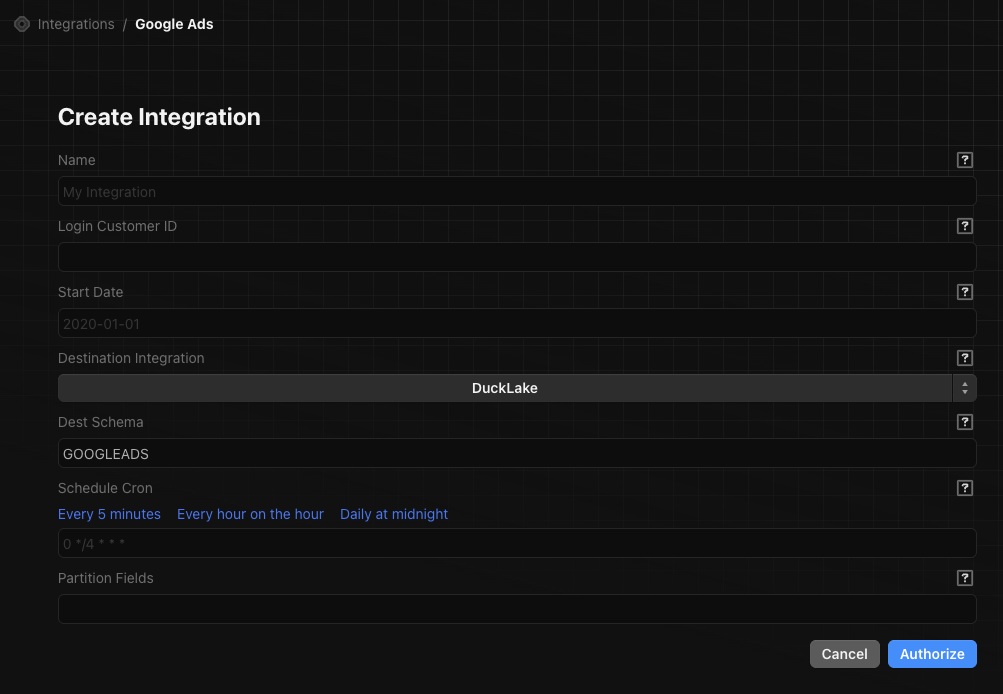
Enter a cron expression for how often the integration runs. Use the preset links or write your own. Examples:
- Every hour:
0 * * * * - Daily at midnight:
0 0 * * *
If needed, enter a JSON object specifying partition fields per table. This only applies when the destination is DuckLake. See the target-ducklake partitioning docs for details.
Click Authorize. You'll be redirected to Google to sign in and grant Definite access to your Google Ads data. After completing the OAuth flow, you'll be brought back to Definite and the integration will be created.
Available data
Once connected, the following tables are available in your destination schema.
| Table | Description |
|---|---|
campaign_performance | Daily spend, clicks, impressions, CTR, and average CPC by campaign and account |
campaign_performance_by_location | Same campaign metrics broken out by geography |
ad_groups_performance | Ad group-level performance metrics |
customer | Account metadata including descriptive names and time zones |