
Facebook Ads Extractor
Pulling data from Facebook Ads
Connect your Facebook Ads account to sync ad performance data (spend, impressions, clicks, conversions, and more) into your managed data lake.
We recommend connecting via a Meta System User for a stable, long-lived connection. System User tokens don't expire every 60 days.
Setup: System User (recommended)
Prerequisites:
- Admin role on the Meta Business Manager (only Admins can create and manage System Users)
- Access to every ad account that needs to be synced (the ad accounts must be owned by or shared into the Business Manager)
- A Meta App associated with the Business Manager (needed to generate a token; if one doesn't exist, an Admin can create one at developers.facebook.com)
Create a System User
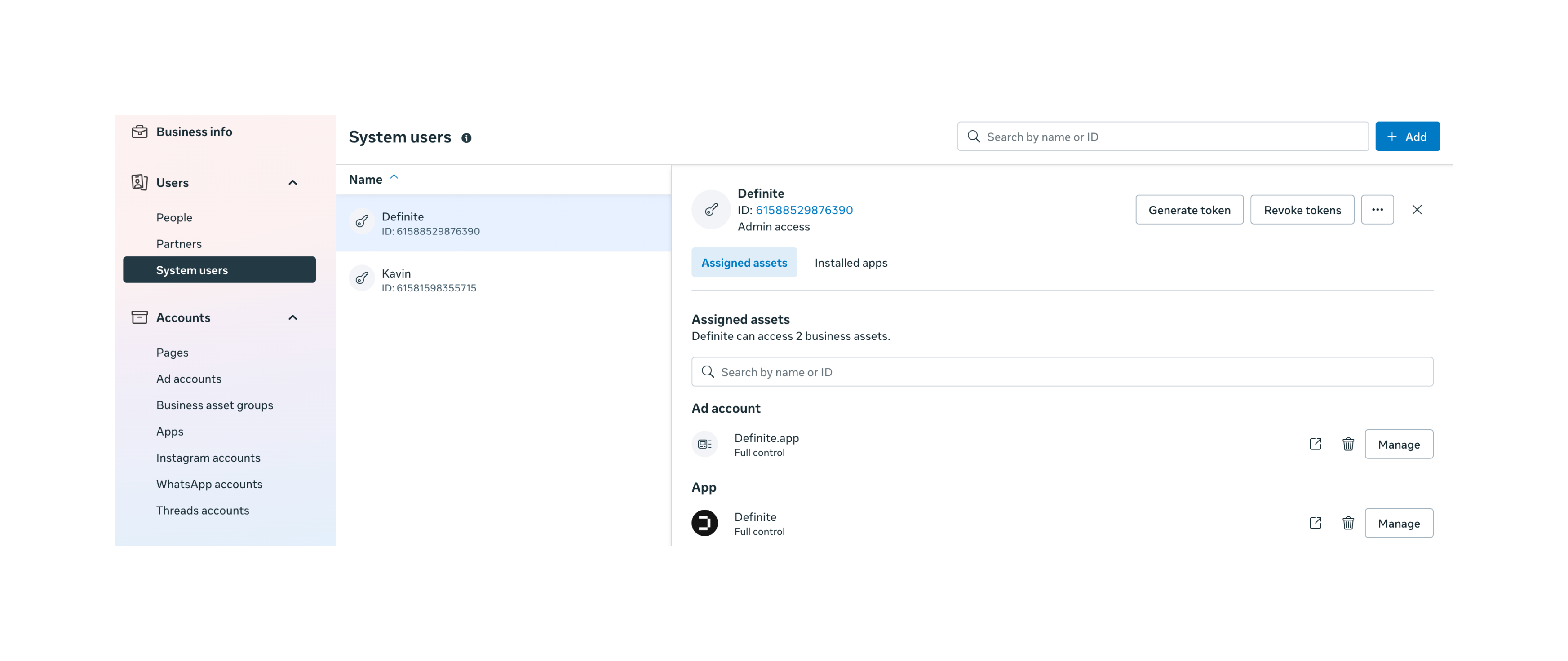
Go to business.facebook.com/settings and navigate to Users > System Users.
Click Add and create a System User with the following settings:
- Name:
Definite - [Client Name] - Role: Admin
Admin System Users can access all assets in the Business Manager. Employee System Users can only access assets explicitly assigned to them.
Click Add Assets, select Ad Accounts, check every ad account that should be synced, and grant full access. The connector pulls data from every ad account the token has access to.
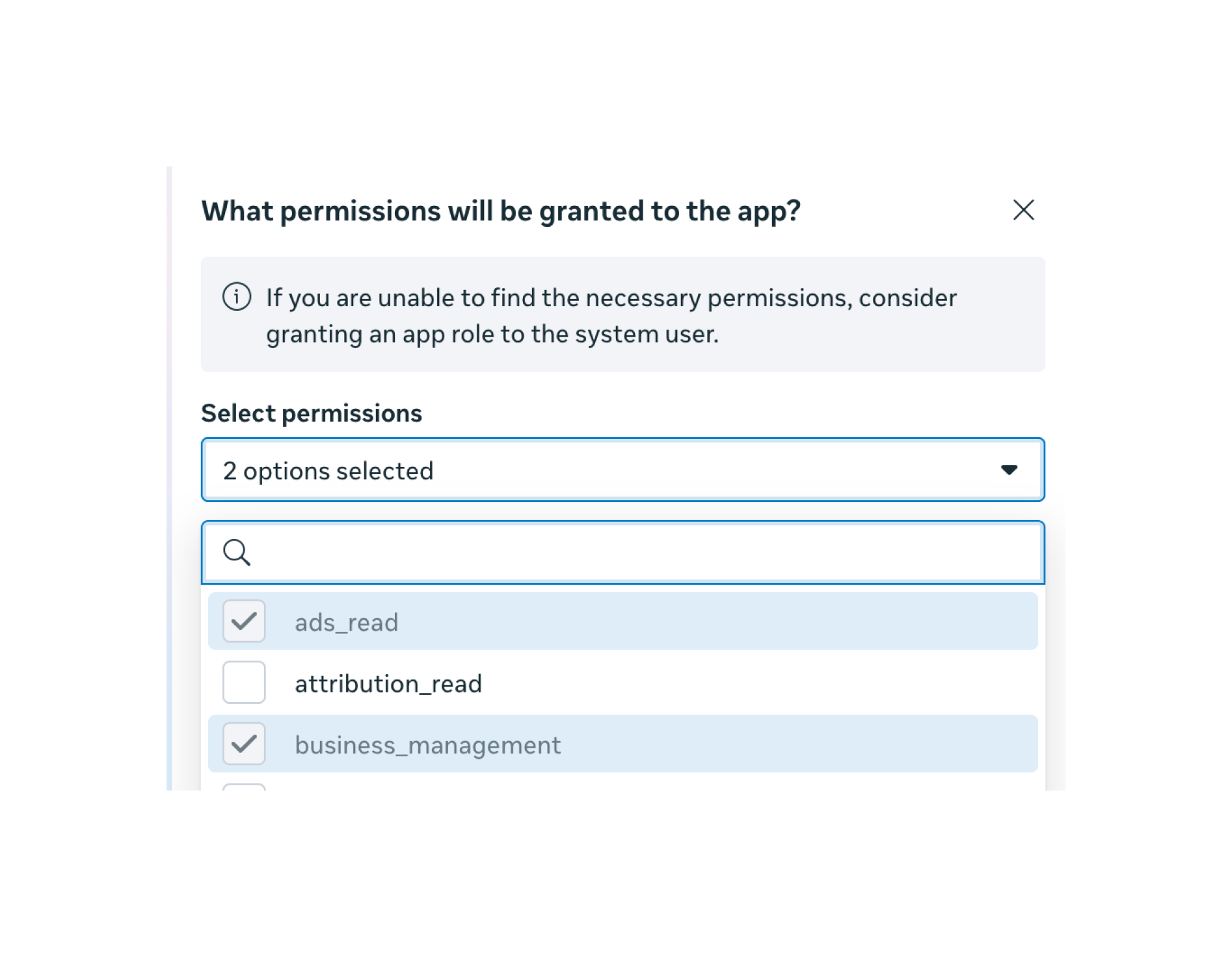
Click Generate New Token, select your Meta App, and enable these two permissions:
ads_read- reads ad performance data (spend, impressions, clicks, conversions, etc.) from all assigned ad accountsbusiness_management- discovers and accesses ad accounts within the Business Manager programmatically
Copy the token. This is your long-lived access token, and it does not expire like personal OAuth tokens.
Store this token securely. You won't be able to view it again after closing the dialog.
Connect to Definite
Go to Integrations and search for Facebook Ads (System User).
Fill in the form:
- Name: A descriptive name (e.g.,
facebook_ads_integration) - Access Token: Paste the System User token you generated
- Account ID: Any ad account ID from the Business Manager (this is a default for API calls; the connector syncs all accounts the token can access)
- Start Date: The earliest date to sync data from (e.g.,
2020-01-01T00:00:00Z) - Destination: Select DuckLake and enter a schema name
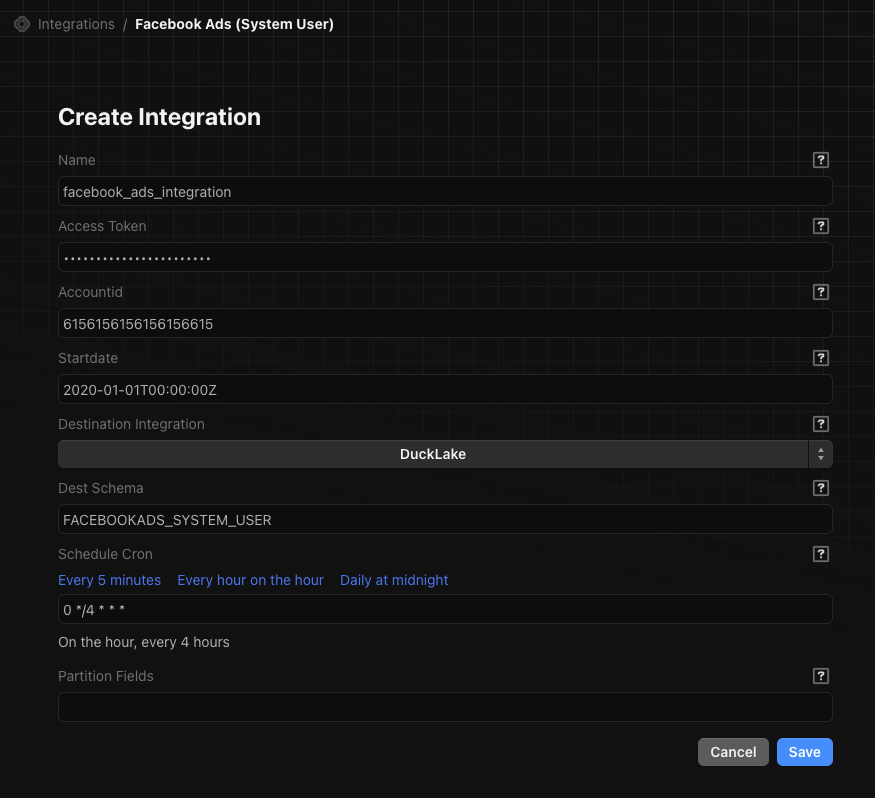
Click Save to create the integration. Your data will begin syncing on the schedule you configured.
If you have ad accounts across multiple Business Managers (business portfolios), you'll need a separate integration for each one. Repeat the entire process (System User creation + Definite integration) for each Business Manager.
Alternative: Personal OAuth token
You can also connect using a personal Facebook login via OAuth. This is simpler to set up but has significant downsides:
- Token expires every 60 days and requires re-authentication
- Access is tied to the authorizing person's permissions. If they lose access to an ad account or leave the company, the pipeline breaks
- The person who authorizes must have access to all ad accounts that need to be synced
If you're using this method, go to Integrations, search for Facebook Ads, and click Authorize to complete the OAuth flow.
Troubleshooting
Some accounts stopped syncing at different dates
This usually means individual ad accounts were removed from the Business Manager, or the authorizing user lost access to them one by one. If the token itself had expired, all accounts would stop on the same day.
Fix: Re-authorize with a user or System User that has access to the missing accounts.
Some accounts never synced
The accounts are likely in a different Business Manager that the current token doesn't have access to.
Fix: Create a separate integration with a System User token from that Business Manager.
All accounts stopped syncing on the same day
This indicates a token expiration. Personal OAuth tokens expire every 60 days.
Fix: Re-authorize the integration, or switch to a System User token for a permanent fix.