HubSpot Extractor
Pulling data from HubSpot
The fastest way to connect HubSpot is with Fi. Say "Create a HubSpot integration". See the video tutorial below.
Prerequisite: Getting your HubSpot access token
To let Definite pull data from your HubSpot account, you'll need an access token. HubSpot now recommends a Service Key for single-account API access like this (backend integrations, ETL / warehouse syncs, and BI tools), so that's the option we recommend. We suggest creating a new Service Key dedicated to Definite to keep access scoped correctly.
Service Keys replace legacy private apps for single-account access. Use a Service Key when you're simply giving Definite read access to one HubSpot account. Project-based apps and OAuth are only needed for multi-customer apps, marketplace install flows, webhooks, or UI extensions, none of which apply here.
Create a Service Key
Log into the HubSpot account you want to automatically pull data from. You'll need Super admin or Developer tools access permission to create a Service Key.
In the left sidebar, go to Development > Keys > Service keys.
Click Create service key in the top right and give it a name (for example, Definite).
Click Add new scope. In the right panel, search for .read to filter, then select all of the read scopes. Also add sales-email-read and tickets. Click Update when you're done.
Click Create in the top right, then confirm in the dialog.
Open the new key by clicking its name, click Show, then Copy to grab the token. It looks like pat-na1-.... This is the Access Token you'll paste into Definite.
The auth pattern is the standard HubSpot Bearer token, so everything downstream works the same:
curl https://api.hubapi.com/crm/v3/objects/contacts \
  -H "Authorization: Bearer $HUBSPOT_SERVICE_KEY"
Alternative: legacy private app
If Service Keys aren't available in your account yet, you can still create a legacy private app. We recommend making a new app for Definite to ensure the correct access.
Log into your HubSpot account that you want to automatically pull data from.
Click the gear icon to get to your settings.

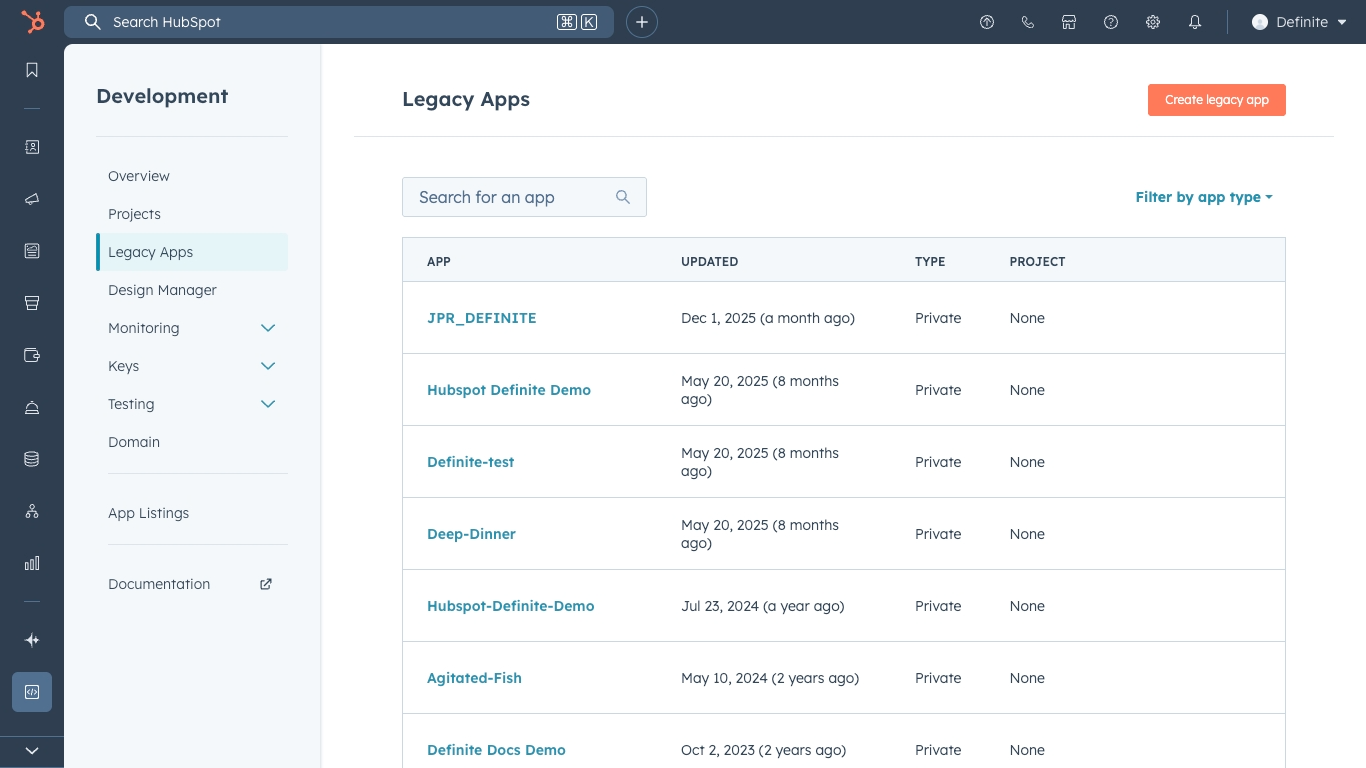
Under Account Management > Integrations > Legacy Apps, click the Create legacy app button.
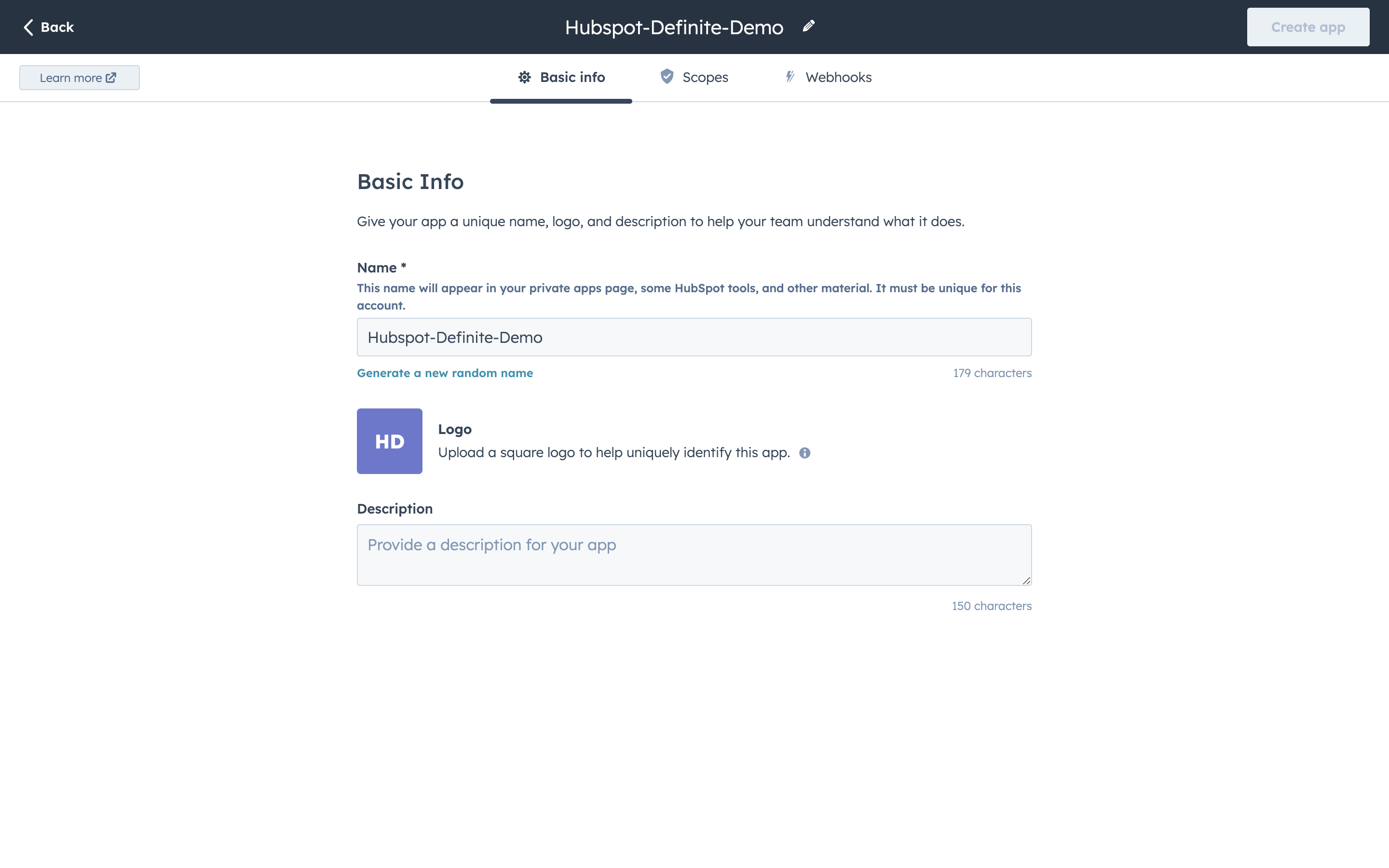
Name your app. Then click the Scopes tab.
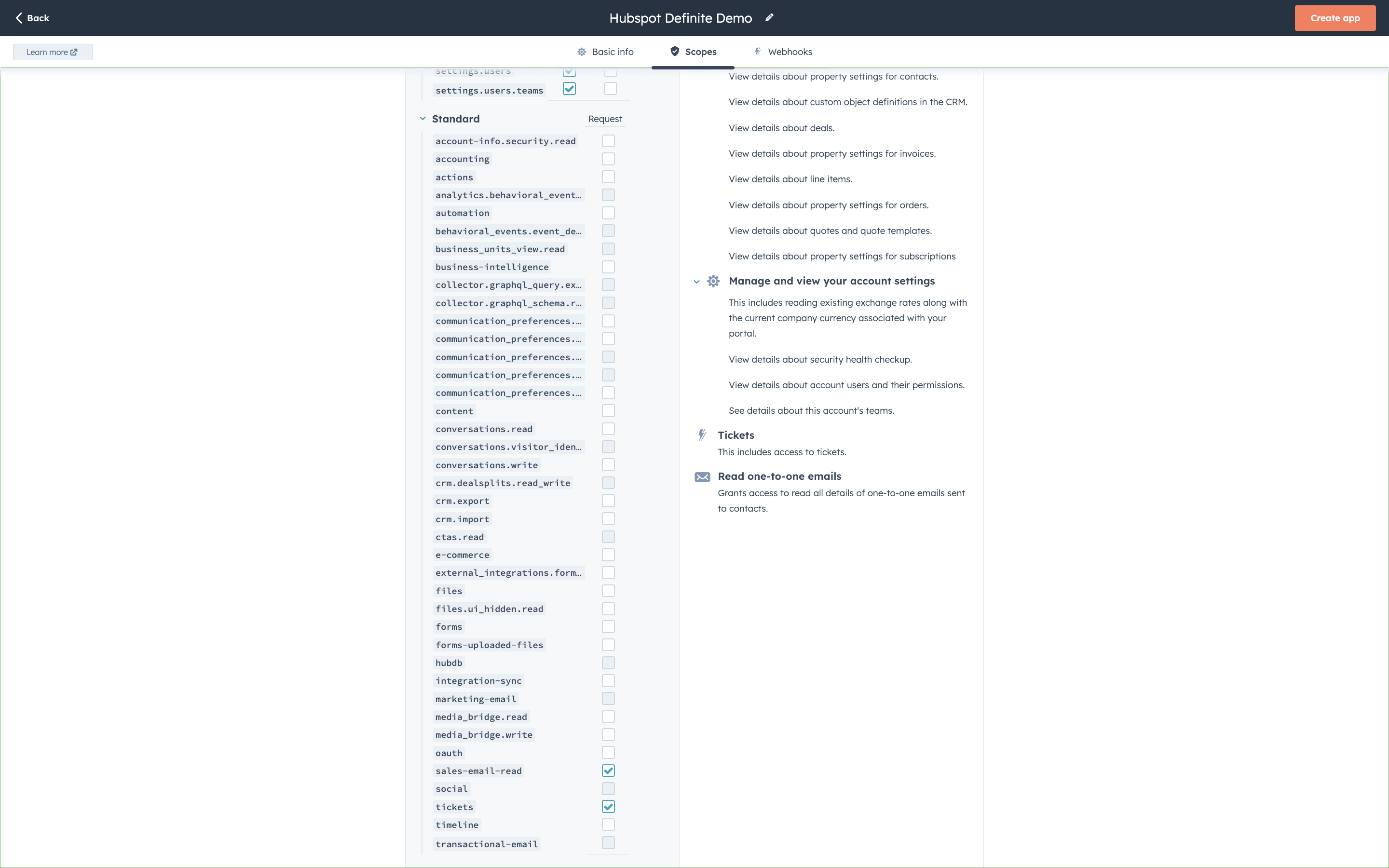
Select Read for ALL scopes under CMS, CRM, and Settings.
Select Request for the following scopes under Others:
sales-email-read
tickets
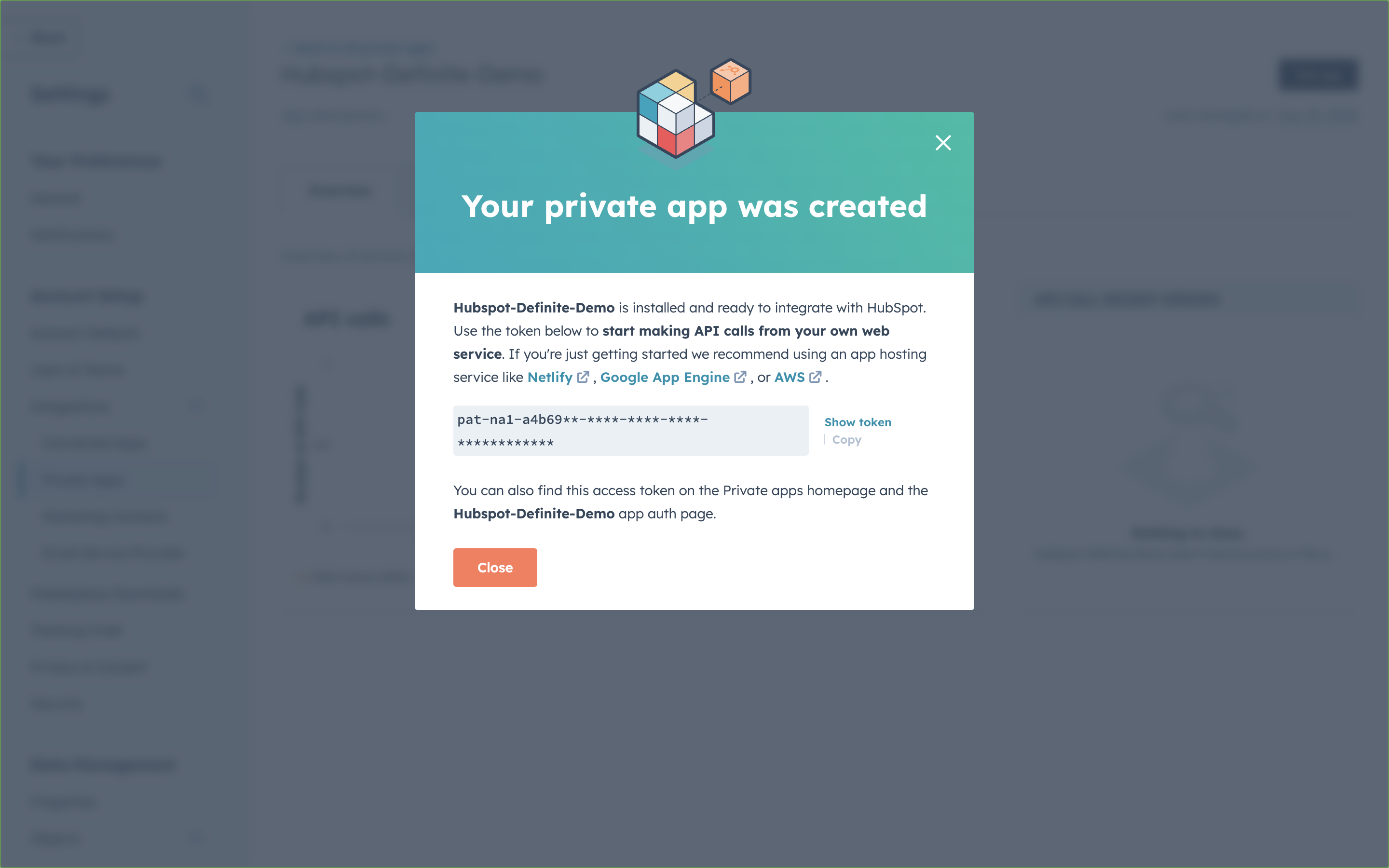
After you confirm your creation, you should see this page where you can show and copy the Access Token value.
Quick setup with Fi
Once you have your Access Token, you can set up HubSpot in under a minute using Fi. Just ask Fi to connect your HubSpot account and it will guide you through the process.
Manual setup
For manual setup, follow the steps below.
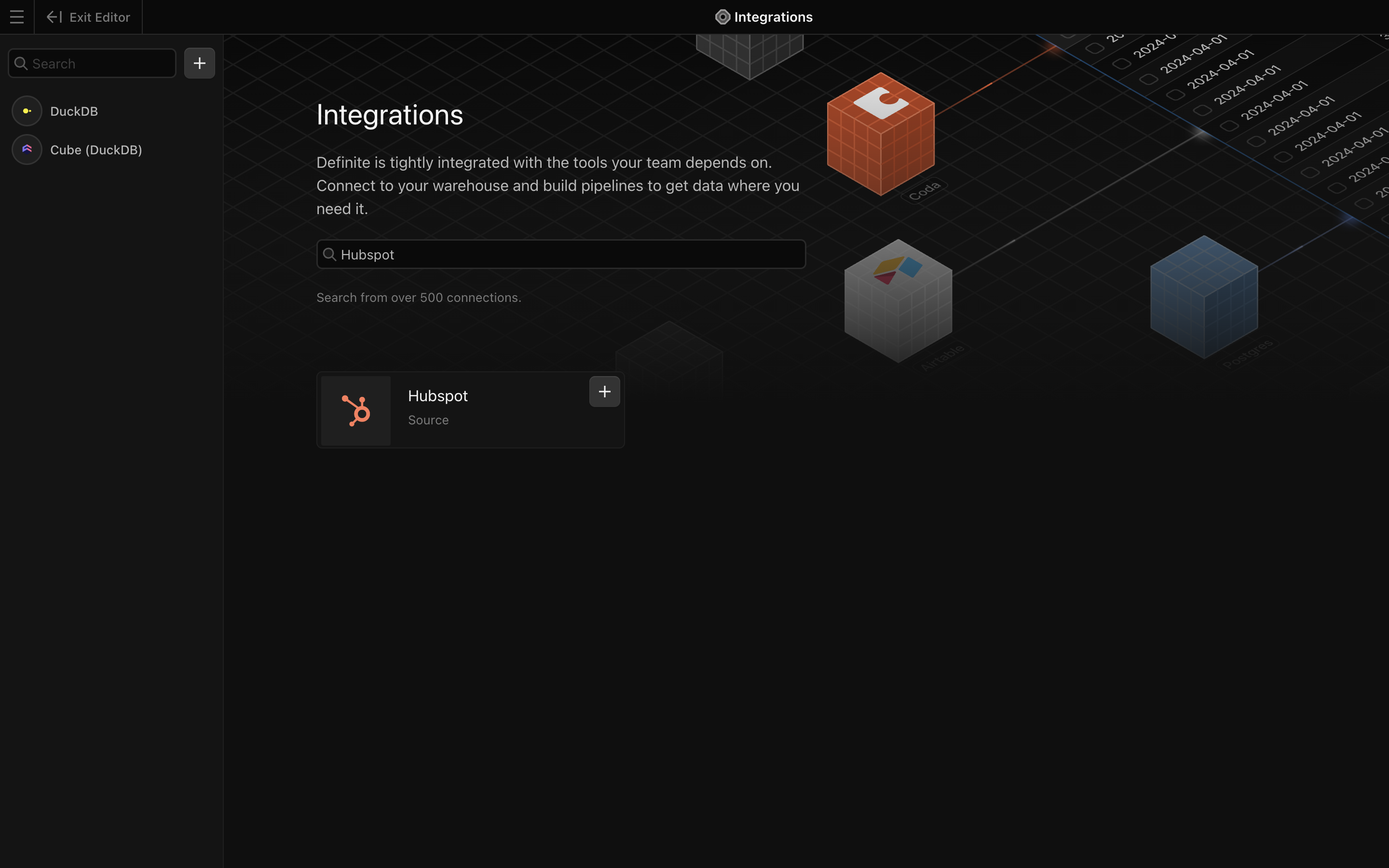
Go to this link to add an integration. Search for the Hubspot extractor.
Add a name for your integration and the Access Token from the section above.
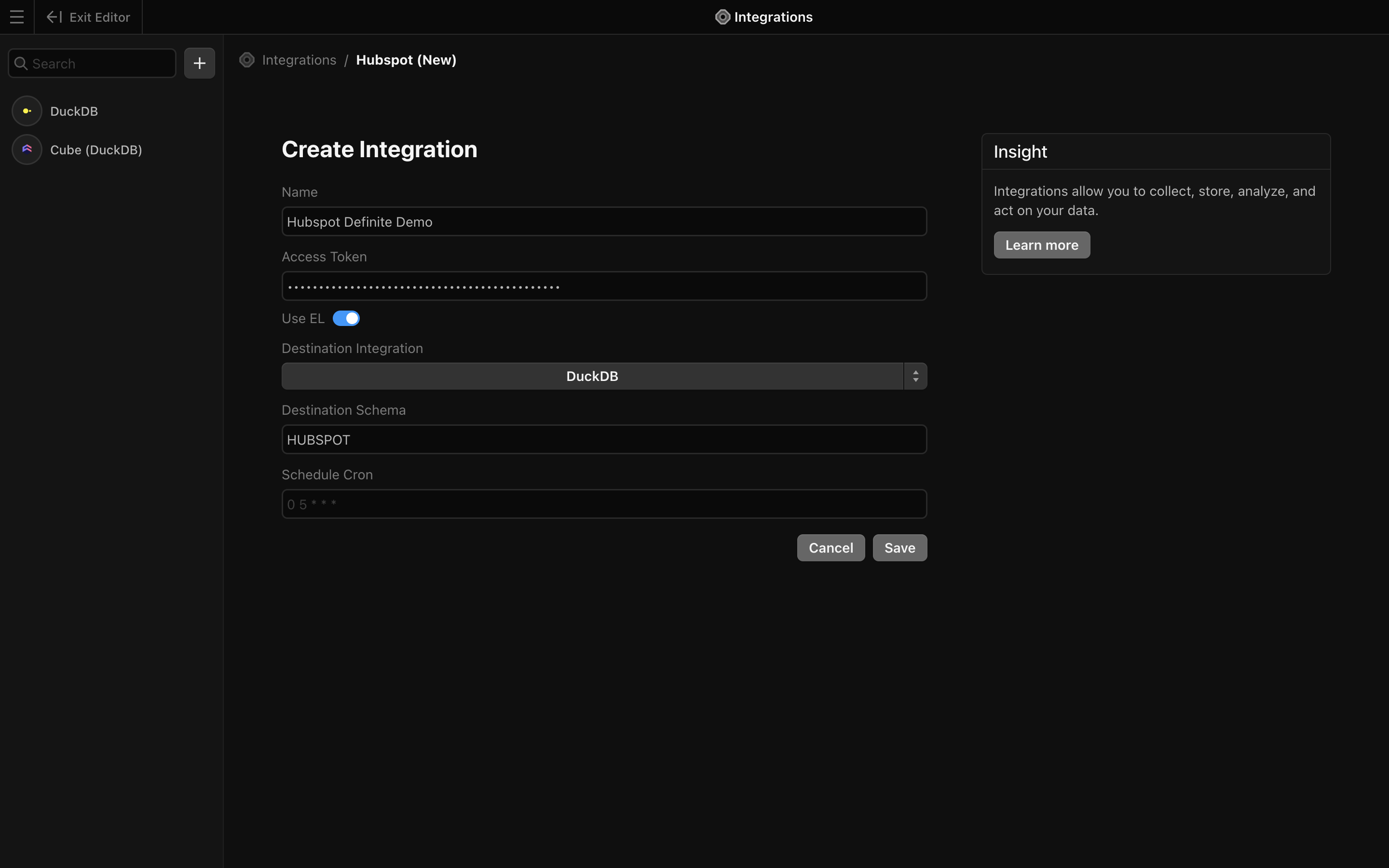
Finish by clicking Save. Definite should automatically take you back to the integrations page where you can see your new HubSpot integration.