
Slack
Connect Slack and push query results and charts to channels.
Connect to Slack
In the Definite homepage, go to Settings Integrations and select Slack.
Create a nickname for your integration.
Hit Authorize and you should be redirected to a page similar to this:
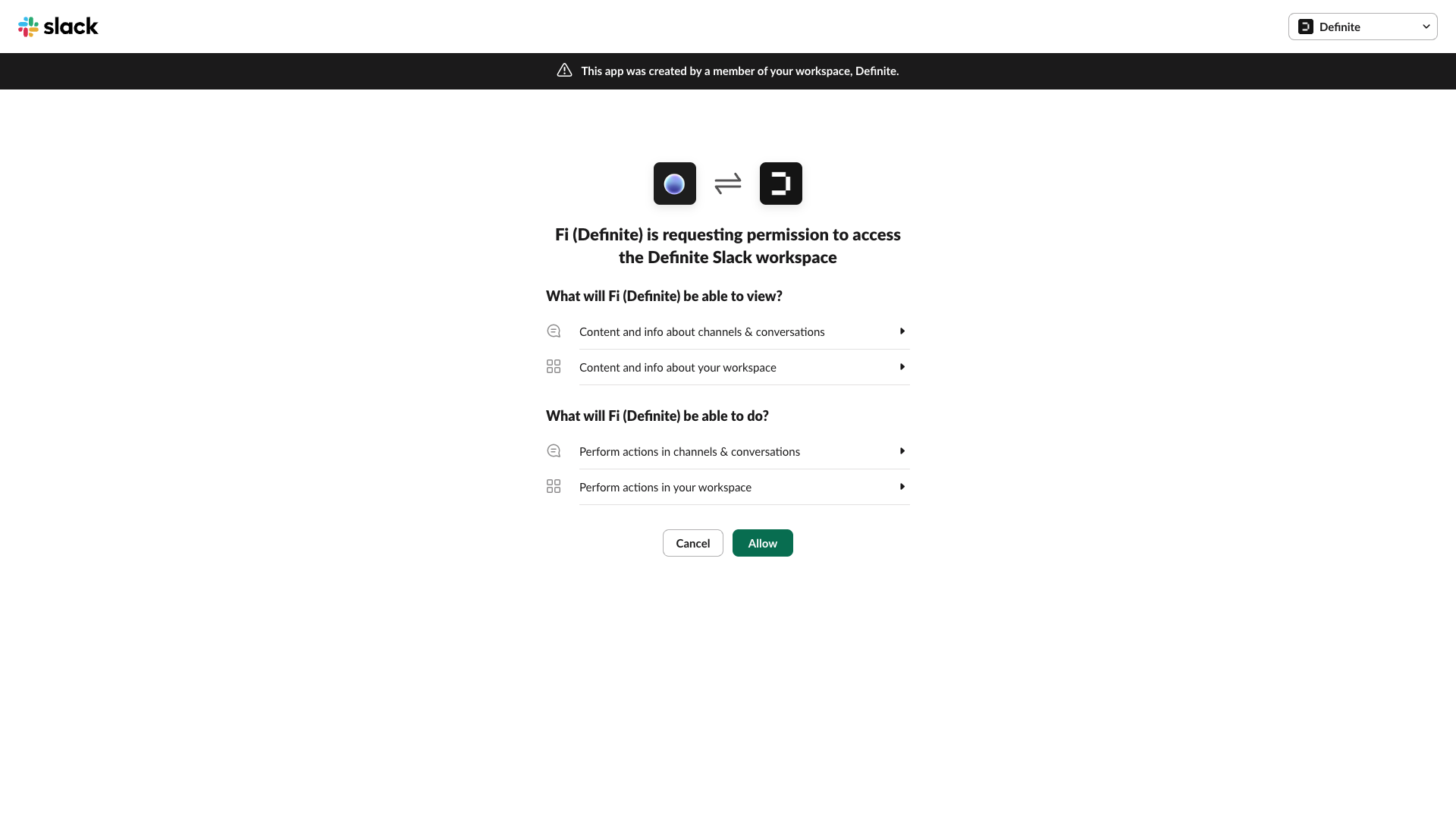
Select your workspace in the upper right hand corner drop down then click Allow.
Add @Definite to the Slack channel you'd like to send alerts to.
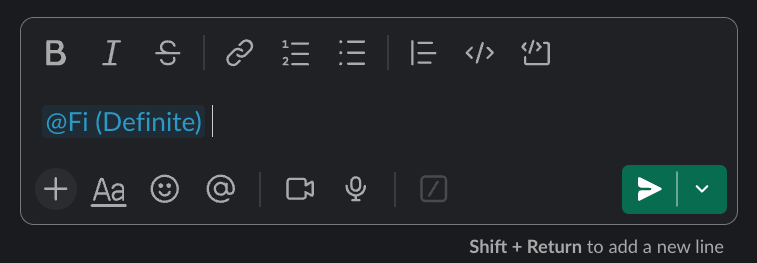
Your Slack integration is now set up.
Push Data to Slack
In your block with the data you want to send, click the More menu icon ( ... ) > Configure which should bring up a Configure sidebar on the right hand side like this:
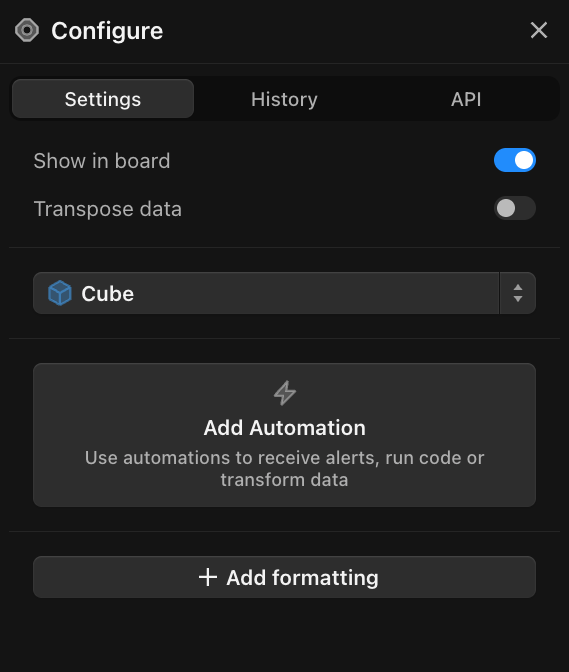
Click Add Automation. Fill these in under Schedule:
Period: select how frequently you want to push dataAction: select Send to SlackIntegration: the nickname for the Slack integration you created aboveChannel: the Slack channel you want the data to be pushed toFormat: If sending output from a query, you can send data in CSV, JSON, or Text Table formats. If sending a chart, the format will be in PNG
If sending the results of a query, click Create to run and send your block. If sending a chart, set a schedule for the chart block to run as Definite currently only supports scheduled sends for visualizations.
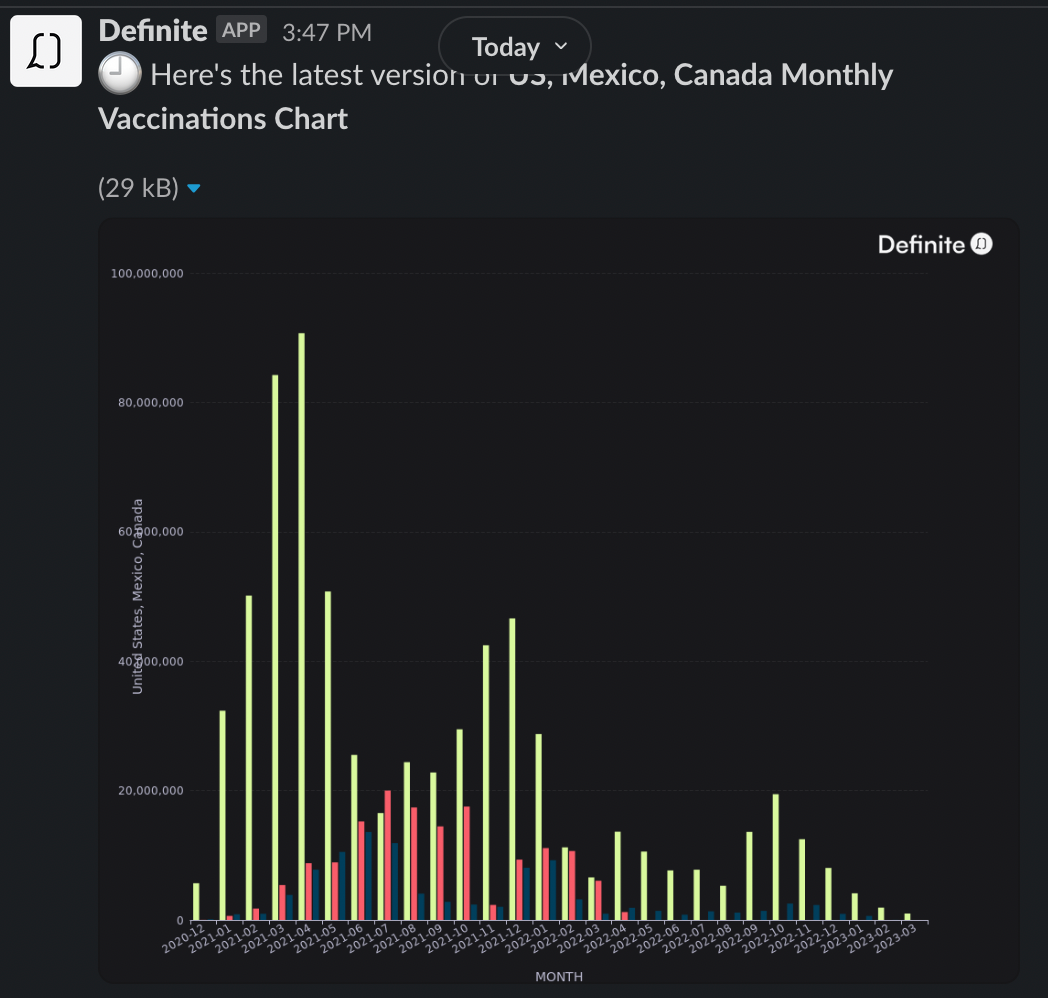
An example of a Definite chart sent to Slack
Fi uses large language models (LLMs) to generate responses and insights. AI-generated content may occasionally contain inaccuracies or incomplete information and should be reviewed before making business decisions.
For more information about how Definite collects, uses, and protects data, please review our Privacy Policy.