
Uploading Files
Upload files to analyze in your Docs
Note
Users need the Admin role to upload files. Analysts have read-only access.
Definite lets you upload files directly into your Docs for analysis. Drag a CSV, PNG, Markdown file, Word document, PDF, or other common file types into the Fi panel to get started.
Uploading a file
Open the Doc where you want to analyze the file.
Drag the file from your local machine onto the Fi panel on the right side of the Doc.
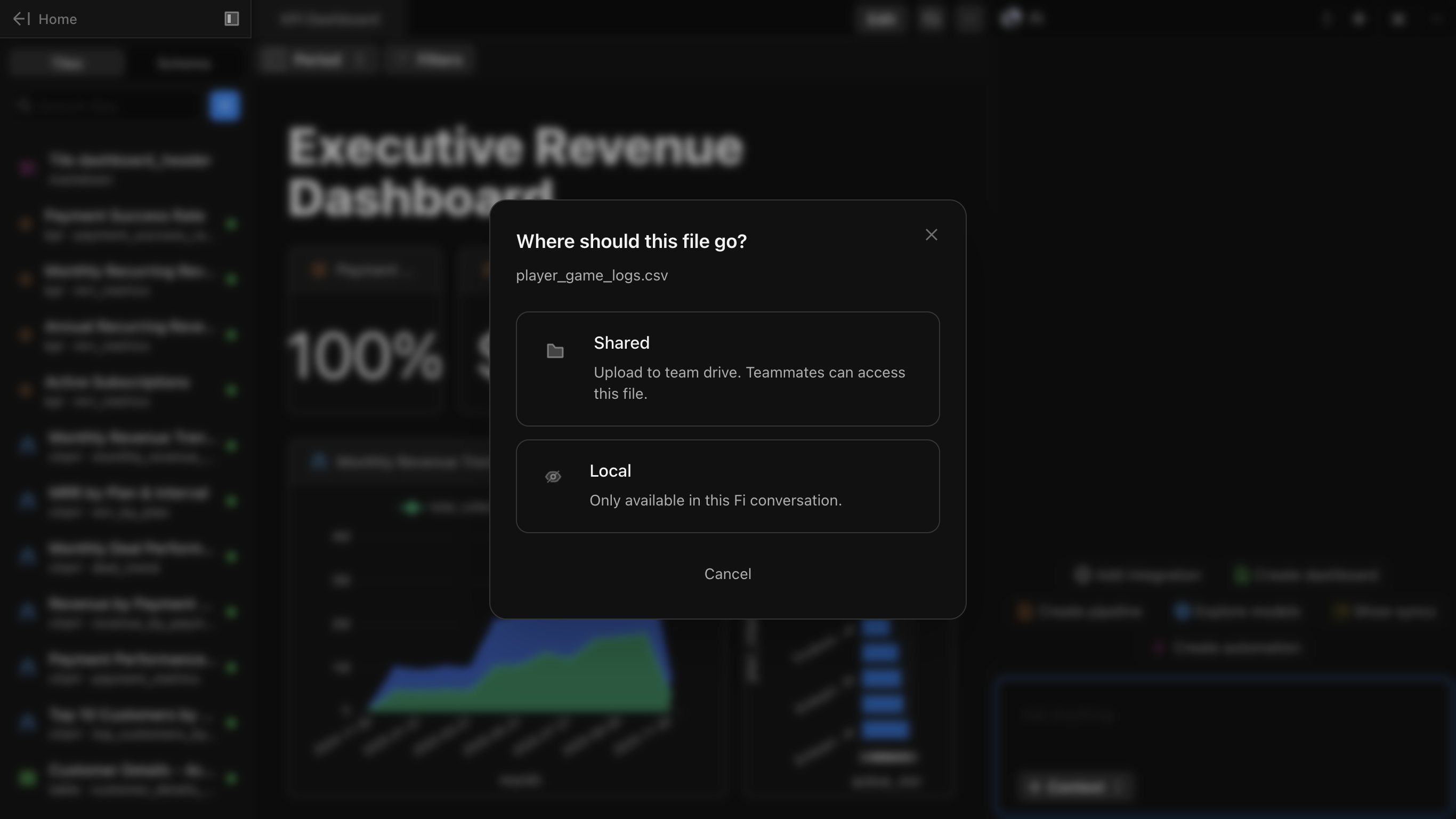
Choose where the file should go:
| Option | Description |
|---|---|
| Shared | Upload to team drive. Teammates can access this file. |
| Local | Only available in this Fi conversation. |
Ask Fi to analyze the file. For example: "Build me a quick executive dashboard from this data."
Working with uploaded files
After uploading, you can:
- Query the data: Write SQL against the uploaded file like any other data source
- Join with warehouse data: Combine uploaded data with your connected databases
- Create visualizations: Build KPIs, charts, and tables from the uploaded data
- Ask Fi: Use natural language to analyze the uploaded file
Use cases
- Ad-hoc analysis: Upload a spreadsheet export for quick analysis
- Data enrichment: Join external data with your warehouse tables
- Prototyping: Test queries against sample data before connecting to production
- One-time reports: Analyze data that doesn't need to live in your warehouse