
Bigquery
To get started, you need to
Create a Google Cloud Service Account
Navigate to the Google Cloud service account management dashboard and select your project.
Click + CREATE SERVICE ACCOUNT

Fill in the service account name field. Ex: definite-bigquery-reader
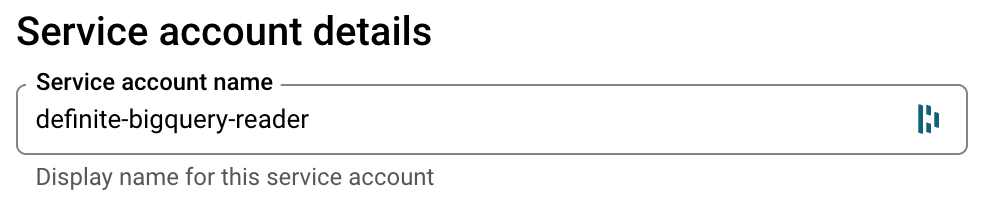
Click Done
Grant Bigquery Permissions
Navigate to the Google Cloud IAM-Admin console for your project.
Click + GRANT ACCESS under the search box.

Enter the previously created service account name in the New Principals field. Ex: definite-bigquery-reader .
Assign these roles through the dropdown box for Select a role .
Read metadata from the table or view.
Read permissions on datasets in the project.
Job permissions to run queries on datasets.
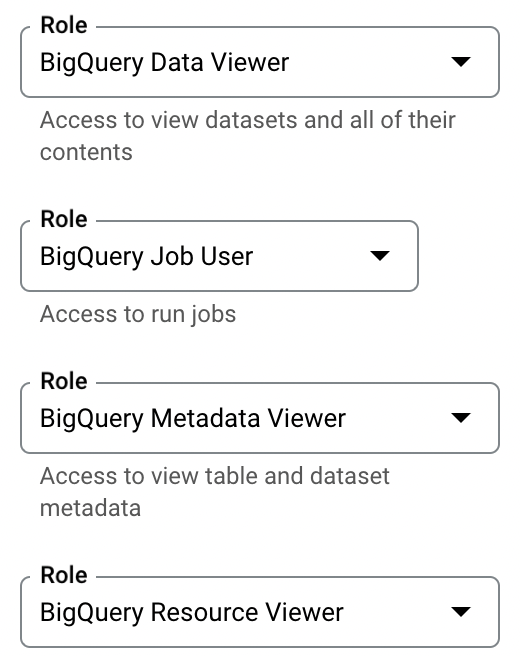
Click Save .
Create And Save the Service Account Key
Navigate to the Google Cloud service account management dashboard and select your project.
Click on the service account you created.
Navigate to the KEYS tab.

Click Add Key Create new key Create
- This will create and download a JSON key (.json) used by Definite to authenticate as the service account user.
Save the .json key file
Give Definite the Service Account Key
From the Definite homescreen Settings Integrations BigQuery.
You should see a screen like this where you can paste in your service account key:
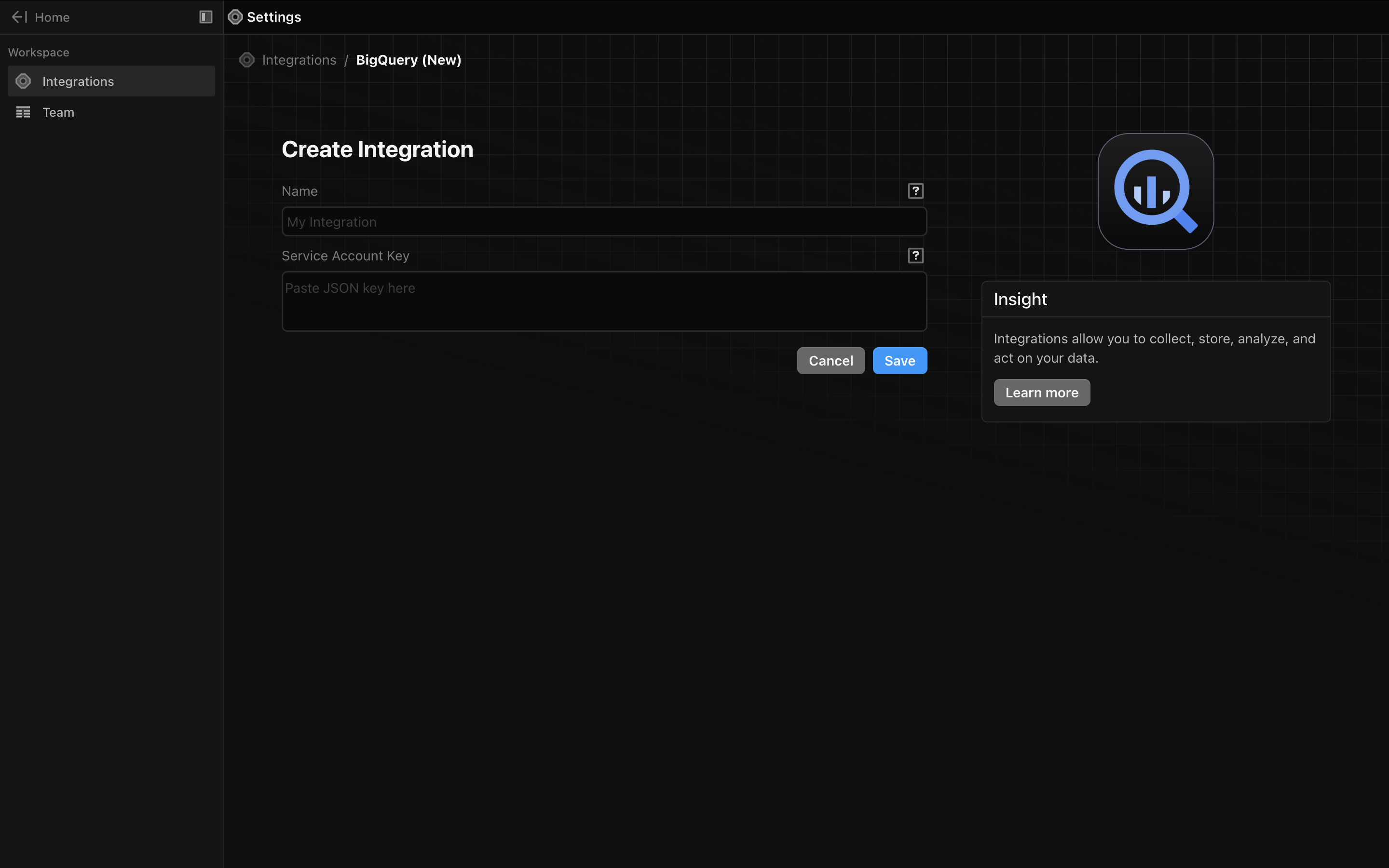
Click 'Save'
Public Datasets
You can query BigQuery public datasets. For example:
select
FORMAT_TIMESTAMP('%Y-%m-%d', timestamp) as dt,
*
FROM `bigquery-public-data.hacker_news.full` as c
where c.timestamp >= '2022-11-15'
limit 100