Google Sheets
Connect Google Sheets and push query results to spreadsheets.
Connect to Google Sheets
In the Definite homepage, go to Settings Integrations and select Google Sheets.
Create a nickname for your integration and click Authorize.
Go through the Google auth login flow and click Allow.
Your Google Sheets integration is now set up.
Push Data to Google Sheets
In your block with the data you want to send, click the More menu icon ( ... ) > Configure which should bring up a Configure sidebar on the right hand side like this:
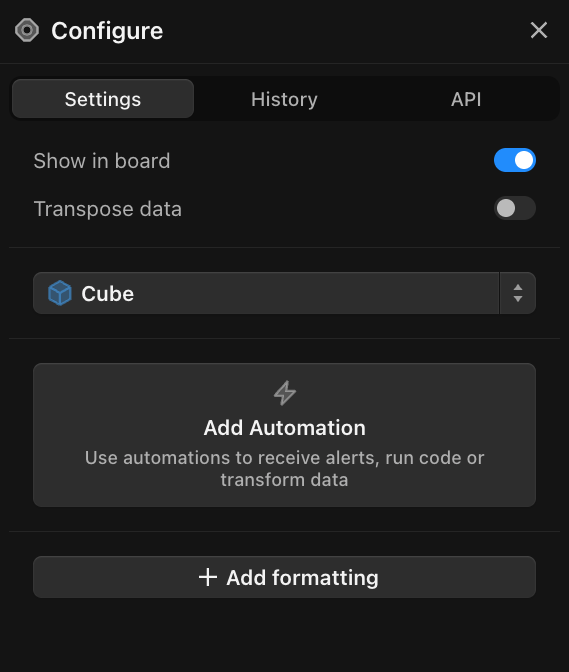
Click Add Automation. Fill these in under Schedule:
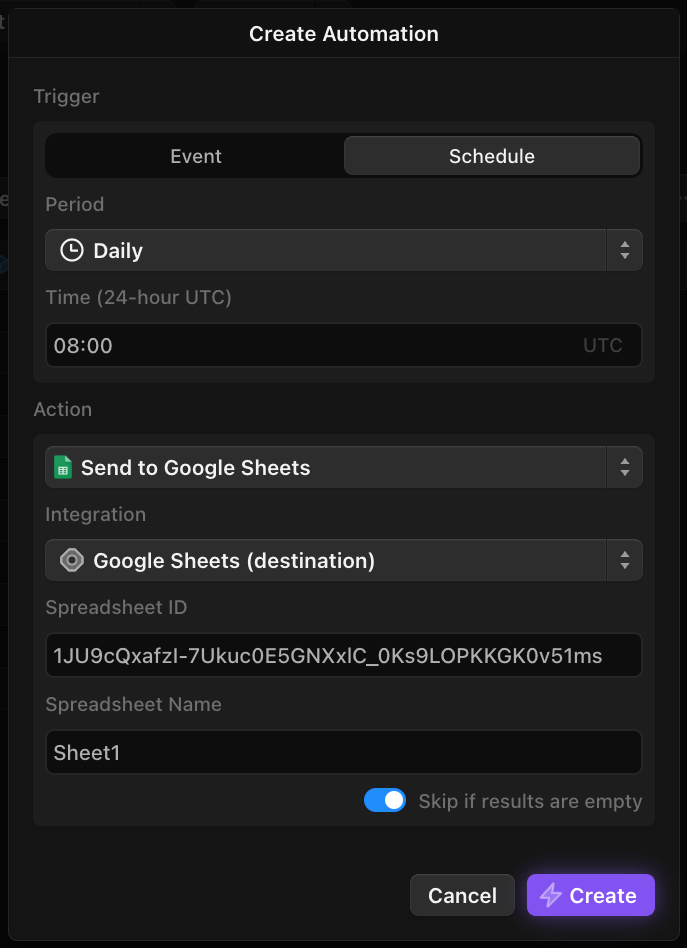
Period: select how frequently you want to push data to the spreadsheetAction: select Send to Google SheetsIntegration: the nickname for the Google Sheets integration you created aboveSpreadsheet ID: can be found in this part of the url of the Google Sheet you would like to send data to:

Spreadsheet Name: name of the sheet/tab within your Google Sheets file
Once filled in, it should look something like this:
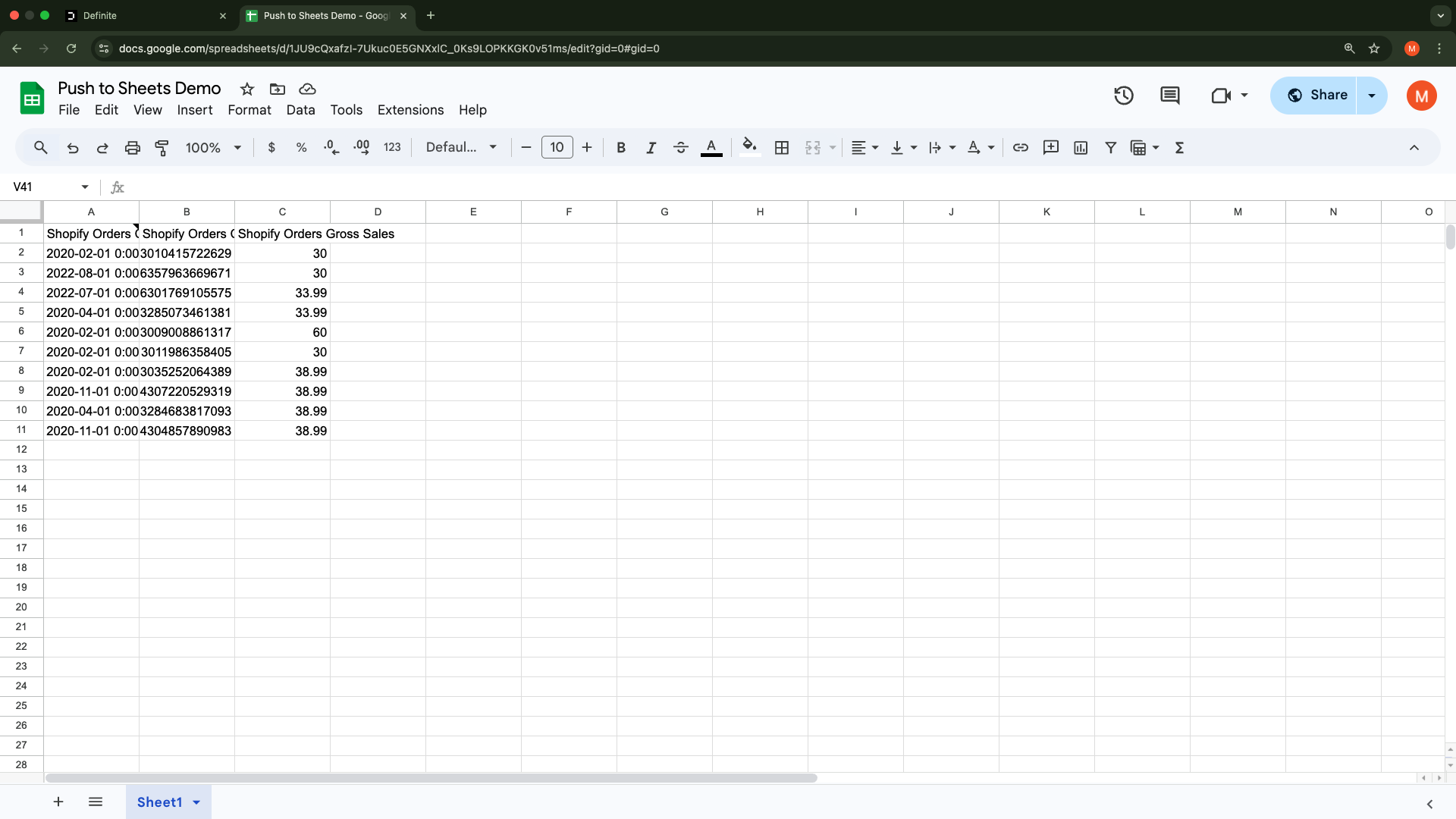
Hit Create. The results of your block should now be in your target Google Sheet.